2026 Nextcloud Upgrade
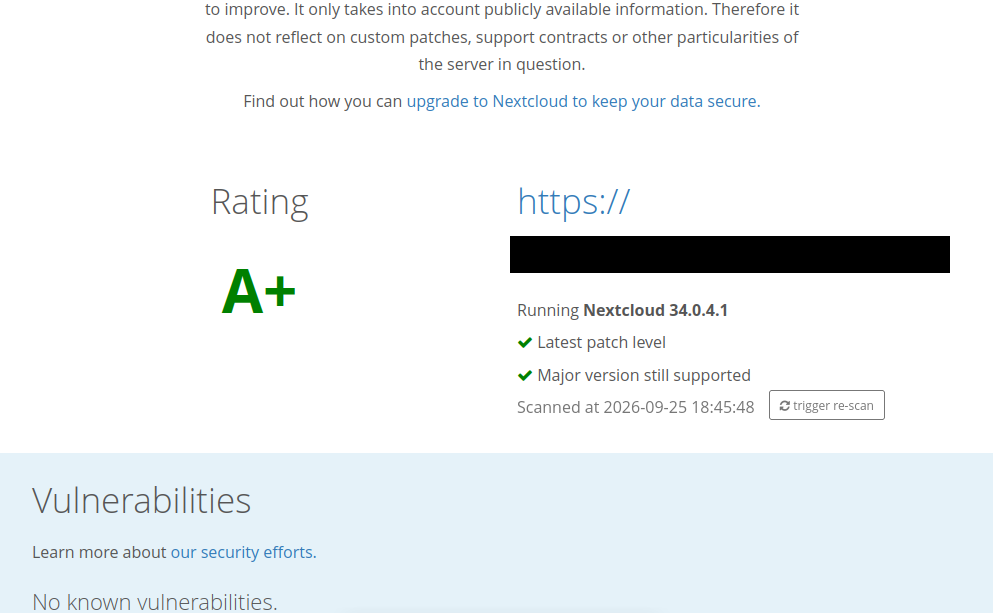
In the continuing saga of upgrading my servers, I also needed to upgrade my Nextcloud instance. There were several hurdles and pitfalls for me here, and a lot of time was wasted trying to figure out exactly what to do. I had already decided not to upgrade my instance through the built in upgrade system within NC, but instead to build a new NC instance from scratch and then move my data over.
That might seem odd, but several reasons led to this decision, the first being that the current NC instance had some sort of problem with the built in updater and was "stuck" on the previous version. Even when I could update, along the way something broke in the update software which forced me to do my upgrades from the command line instead of from the web interface. Less than ideal, for sure. It also helped that I only have a couple of family members using my NC instance, so I didn't need to move/create a ton of accounts.
I also really wanted to try using the "AIO" (All-In-One) docker solution. In the past, I had to constantly fight with my server configuration and dependency problems to get a working solution for NC. I will be the first to admit, it probably was due to something I was doing wrong, but in either event, it was a headache keeping everything working and up to date. Often when updating, I would have to drop a feature or changed so many dependencies that some of the other uses of my server, such as serving other websites, would stop working. So this time I wanted a drop in solution that had all the features and 'just worked'. the AIO docker sounded like a win to me.
Of course, with docker comes some new security issues, but hopefully I read up on that enough and implemented the proper precautions enough to make sure that is a very small, if not impossible attack surface. I won't go into too many details of that here, partly because I just followed other guides, and partly because I am concerned with sharing too much information on that point, for the safety of my server.
But, one thing that really hung me up was how to configure the AIO NC on a server that serves other websites. Normally, I use Apache2, with reverse proxy, choosing different web root folders for the different domain names and internet addresses. Due to my lack of knowledge about docker, it took me a long time to figure out how to do this with the AIO instance. The AIO includes it's own Apache2 server, which is configured to be the sole service thereof, not leaving any room or options for my other websites that I serve.
At first, I was erroneously trying to look into how do I run the AIO, and edit it's Apache configuration to include my other websites. This was backwards, I just didn't realize it at the time, and a lot of hours were wasted on that fruitless pursuit. After much research, and a little trial and error, I eventually came to this conclusion, run the AIO stand alone, but behind the reverse proxy of my Apache2 for the OS/server itself. But, I couldn't figure out what document root to use with the docker AIO on my Apache2 configuration. So I wasted a few more hours trying various methods of that. Eventually, I came to understand that when I run the docker, I could choose a different port number for it, and then used my reverse proxy to point incoming http/s requests on 80/443 that were for the NC instance to be passed to the new port number assigned to the NC instance! I didn't come up with this, I read it online [1] and I think this is actually the proper way it should be done, and it just took me several days of monkeying around to get there.
So, my apache2 configuration looked like this:
$ cat nextclouddocker.conf
<VirtualHost *:80>
ServerName REDACTED.SOMEPLACE
ServerAlias REDACTED.SOMEPLACE
RewriteEngine On
RewriteCond %{HTTPS} off
RewriteRule (.*) https://%{HTTP_HOST}%{REQUEST_URI}
RewriteCond %{SERVER_NAME} =REDACTED.SOMEPLACE
RewriteRule ^ https://%{SERVER_NAME}%{REQUEST_URI} [END,NE,R=permanent]
</VirtualHost>
<VirtualHost *:443>
ServerName REDACTED.SOMEPLACE
RewriteEngine On
ProxyPreserveHost On
RequestHeader set X-Real-IP %{REMOTE_ADDR}s
# Added to support Euro-office
RequestHeader set X-Forwarded-Proto "https"
AllowEncodedSlashes NoDecode
# Adjust the two lines below to match APACHE_PORT and APACHE_IP_BINDING. See https://github.com/nextcloud/all-in-one/blob/main/reverse-proxy.md#adapting-the-sample-web-server-configurations-below
ProxyPass / http://localhost:11000/ nocanon upgrade=websocket
ProxyPassReverse / http://localhost:11000/
# Enable h2, h2c and http1.1
Protocols h2 h2c http/1.1
# Solves slow upload speeds caused by http2
H2WindowSize 5242880
# TLS
SSLEngine on
SSLProtocol -all +TLSv1.2 +TLSv1.3
SSLCipherSuite ECDHE-ECDSA-AES128-GCM-SHA256:ECDHE-RSA-AES128-GCM-SHA256:ECDHE-ECDSA-AES256-GCM-SHA384:ECDHE-RSA-AES256-GCM-SHA384:ECDHE-ECDSA-CHACHA20-POLY1305:ECDHE-RSA-CHACHA20-POLY1305:DHE-RSA-AES128-GCM-SHA256:DHE-RSA-AES256-GCM-SHA384:DHE-RSA-CHACHA20-POLY1305
SSLHonorCipherOrder off
SSLSessionTickets off
# If running apache on a subdomain (eg. nextcloud.example.com) of a domain that already has a wildcard ssl certificate from certbot on this machine,
# the <your-nc-domain> in the below lines should be replaced with just the domain (eg. example.com), not the subdomain.
# In this case the subdomain should already be secured without additional actions
# Disable HTTP TRACE method.
TraceEnable off
<Files ".ht*">
Require all denied
</Files>
# Support big file uploads
LimitRequestBody 0
# The default NEXTCLOUD_MAX_TIME value is 3600 seconds.
# By setting it 10 seconds higher than that, we make sure that always Nextcloud times out and not Apache.
# If you increased NEXTCLOUD_MAX_TIME, increase the timeout below accordingly.
Timeout 3610
ProxyTimeout 3610
Include /etc/letsencrypt/options-ssl-apache.conf
SSLCertificateFile /etc/letsencrypt/live/REDACTED.SOMEPLACE/fullchain.pem
SSLCertificateKeyFile /etc/letsencrypt/live/REDACTED.SOMEPLACE/privkey.pem
</VirtualHost>
Thus my server's Apache2 config accepted requests on 80/443 bound for my NC instance, and passed them over to port 11000 instead, leaving all of the heavy lifting to the AIO's built in Apache server, with PHP, etc., and my OS/server doing all of the SSL encryption. Of course, to get the docker running, I had to edit the usual launch command to make sure it listened on that port instead:
docker run --init --sig-proxy=false --name nextcloud-aio-mastercontainer --restart always --publish 8080:8080 --env APACHE_PORT=11000 --env APACHE_IP_BINDING=0.0.0.0 --env APACHE_ADDITIONAL_NETWORK="" --env SKIP_DOMAIN_VALIDATION=false --env NEXTCLOUD_DATADIR="/data/ncdata" --volume nextcloud_aio_mastercontainer:/mnt/docker-aio-config --volume /var/run/docker.sock:/var/run/docker.sock:ro ghcr.io/nextcloud-releases/all-in-one:latestNote that the APACHE_PORT is set for 11000, meaning the docker AIO Apache is listening on 11000. Also important to note is that I set --env NEXTCLOUD_DATADIR to a real place on my server, so I could easily move files in and out of the NC instance. It also makes backups easier.
Speaking of moving files, I then needed to move 1.1 TBs of family photos, home videos, and audio recordings from the old server onto the new server and import them into NC. To facilitate this, I created a user named "OldServer" and in the OldServer NC folder, I digitally put all 1.1 TBs of data. To import it into my Nextcloud, I ran this command within the folder on the /data drive:
docker exec --user www-data -it nextcloud-aio-nextcloud php occ files:scan OldServerAnd NC did the rest to import all the files. It took a while, because of all the data, but it was a lot faster than importing it through a web gui or app. Once the data was in, I shared the appropriate user folder with the appropriate user. I wouldn't recommend this for everyone, but since it was for my own family members, where we already shared all of the photos and videos and such, there wasn't really a security concern, nor any "sensitive" data. I could have put the appropriate files into the appropriate user's individual folders and then ran the scan for all or each user instead, if that had been a concern.
Either way, it was a slow process, but I am really glad I did it this way because I learned a lot about using docker! I also really hope this will make future upgrades simpler and seamless, without the hassle of changing dependencies, since they are all built into the AIO docker instance. I did run a security scan of my server, and came out with an A+ certification for the NC instance, which was encouraging.
Linux - keep it simple.
[1] https://github.com/nextcloud/all-in-one/blob/main/reverse-proxy.md